HDISV provisioning guide
Quick reference
Generate an SSH key
An SSH key is a secure access credential leveraging public-key cryptography for authentication, providing a more secure and convenient alternative to password-based authentication when connecting to remote servers or services. An SSH key is required for provisioning an HDISV system and used for the initial login. Follow the steps below to generate an SSH key:
-
Open the terminal screen on Mac or Linux or the command prompt screen on Windows.
-
Enter ssh-keygen
-
Provide a file location where the output file should be stored or press enter to use the default.
-
Provide an optional passphrase, or press enter to bypass the passphrase. It is highly recommended to enter a passphrase for security.
-
The SSH key has now been generated and stored in the specified directory. Two files are generated, one is private and the other is public. The public file (.pub) is the one that will be provided when ordering the HDISV system.
Order an HDISV service instance
-
From ZLPN, navigate to the System Access menu then select Continuous Remote Access Programs and choose IBM z/OS hosted on demand program for ISVs.
-
Click Apply for program to be taken to the system order form.
-
Select the desired system size (2vCPUs, 4vCPUs, or 8vCPUs). The specified included vCPU, memory, and disk is what is allocated to the z/OS environment, not what is used to run the underlying system.
-
Complete the screening questions.
-
Review the order form details, provide the requested billing details, and accept the program terms and conditions, using the Next and Back buttons to navigate through the screens.
-
Click Create Order to finalize the order and generate an order number. Once the order is submitted, the page will redirect to a second interface where the image is defined. If the redirect is slow, click on the provided link.
-
Select desired Deployment mode. If using Managed service mode, select the z/OS version and optional Middleware, then click Next.
-
At Step 2, review the environment details and upload the public half of the previously created SSH key. It is important to upload the public version of the key. Click Next to proceed.
-
Review the summary and click Submit to proceed with the system build.
-
After submitting, the instance will be created. This process can take some amount of time as the infrastructure and z/OS image are being provisioned. Once created, the new HDISV service instance may be accessed from the ZLPN Dashboard alongside any others that have been provisioned through the ZLPN portal. The dashboard is also available from the Resources menu in ZLPN.
Connect to the z/OS instance
-
At this point, a VPN ID is required. The user who submits the HDISV system order is automatically provided a VPN ID. Other users may Request VPN access via ZLN.
-
Follow the instructions to Access Client VPN with IBMid.
-
Once connected to VPN, open a terminal such as Terminal (MacOS) or Command Prompt (Windows).
Note: When using SSH for the first time on Windows, installing the “OpenSSH Client” application may be required.
-
Connect via SSH to the z/OS instance as the zosadmn user with the zos_ip value from the ZLPN Dashboard and the path to the SSH private key that corresponds to the public SSH key that was uploaded when the instance was created.
Example input
ssh zosadmn@172.20.##.## -i ~/.ssh/id_rsa
The following message displays
Are you sure you want to continue connecting (yes/no/[fingerprint])?
- Type yes and hit Enter. If a message displays
WARNING: REMOTE HOST IDENTIFICATION HAS CHANGED!, re-run the same command above but add this option to the end:–o StrictHostKeyChecking=no. This ensures it is possible to connect even if a connection was previously made to an instance with the same IP. The following message displays upon successful login:

Set a password
-
Execute the following command in the SSH session:
password_change.py -u ZOSADMN –p 'passphrase' -
Follow the on-screen instructions to set a password.

-
If an invalid passphrase is entered, the passphrase rules that must followed will be displayed. As of Oct 2025, the RACF passphrase rules are:
-
Maximum length: 100 characters
-
Minimum length: 14 characters
-
The user ID (as sequential uppercase characters or sequential lower case characters) is not part of the password phrase
-
At least 2 alphabetic characters are specified (A - Z, a - z)
-
At least 2 non-alphabetic characters are specified (numerics, punctuation, special characters, blanks)
-
No more than 2 consecutive characters are identical
Please default to the printed information on passphrase rules as that will be the most up-to-date.
-
Connect to TSO
-
Use a 3270 emulator, like IBM Host On-Demand. Click the Add Sessions button and connect to the zos_ip using port 2023.

-
Login to TSO by typing TSO with the username ZOSADMN.
TSO ZOSADMN
-
Type Enter, to be prompted for a password. Use the password set via SSH:

-
The following displays upon successful login:

-
Enter
ISPForPDFto proceed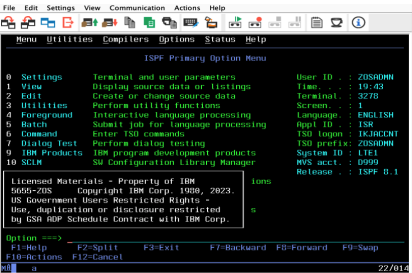
See Connecting to the HDISV z/OS instance for additional details and options for connecting to the z/OS system. See System Layout to understand how the system is organized.