Contacting support
1. Getting started
Important Information
Support for the IBM Z and LinuxONE Partner Network offerings is provided via the IBM Support portal, which provides a common platform for customers and IBM Support Agents to have a unified view of support tickets.
This document provides instructions and resources for using IBM Support.
You will need an IBMid to access the IBM Support portal.
2. Submitting a case to zTech
Follow these steps to open an IBM Support case for the IBM Z ISV Development Programs Team (zTech).
- Navigate to IBM Support.
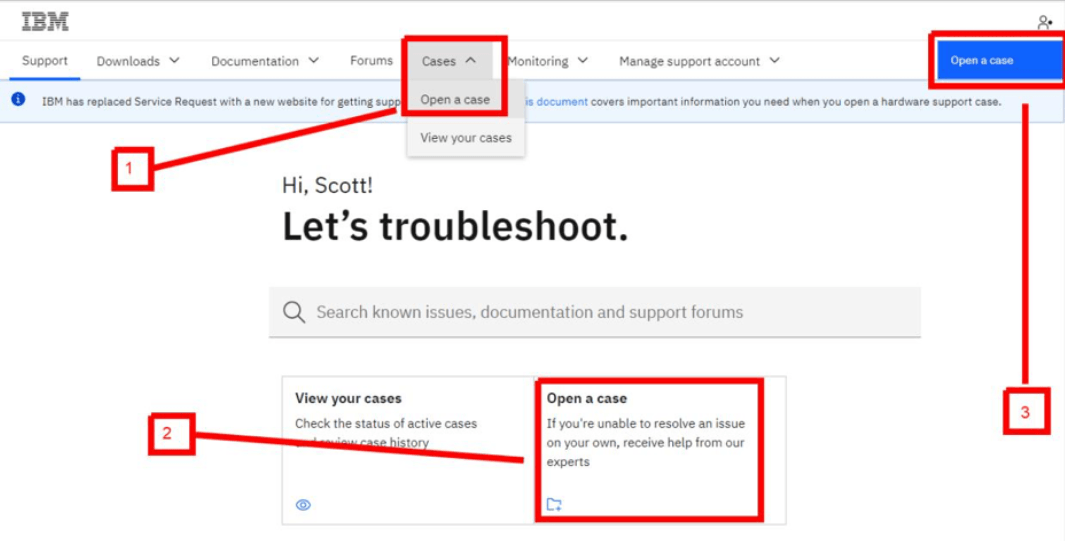
- From the Cases menu, select Open a Case or click the Open a Case button in the upper right-hand corner or click Open a Case in the top-right corner of any Support site page (see screenshot below).
-
Enter your IBMid and password to log in, if prompted.
-
Complete and confirm the form data in each section on the Open a Case page.
a. In the General section, select Other contracted support services for the Type of support you need and enter a Case title to describe your case.
b. In the Service information section, enter and select IBM Z and LinuxONE Partner Network.
c. In Product Area, select a Program offering that best matches the program that is related to your question
d. In the Severity and account information section, select the appropriate Severity. Note: Level 1 – Critical business impact (production or service is down) severity should not be selected as the IBM Z and LinuxONE Partner Network does not handle traditional Severity 1 cases. Please refer to 6 Case severity and escalation for more information on how cases are handled by case severity.
a. Choose an OS type that best matches the operating system you are using, if applicable. (Optional)
c. Choose an OS version that best matches the operating system level you are using, if applicable. (Optional)
d. Provide your system name, if applicable. E.g., ETPGxxx. (Optional)
e. If needed, select yes or no in Logon permission to indicate if the technical staff has your permission to log onto your system for troubleshooting. (Optional)
f. If yes was selected in Logon permission, please specify if there are any Logon restrictions you would like for the ISV Center technical staff to adhere to when logging onto your system.
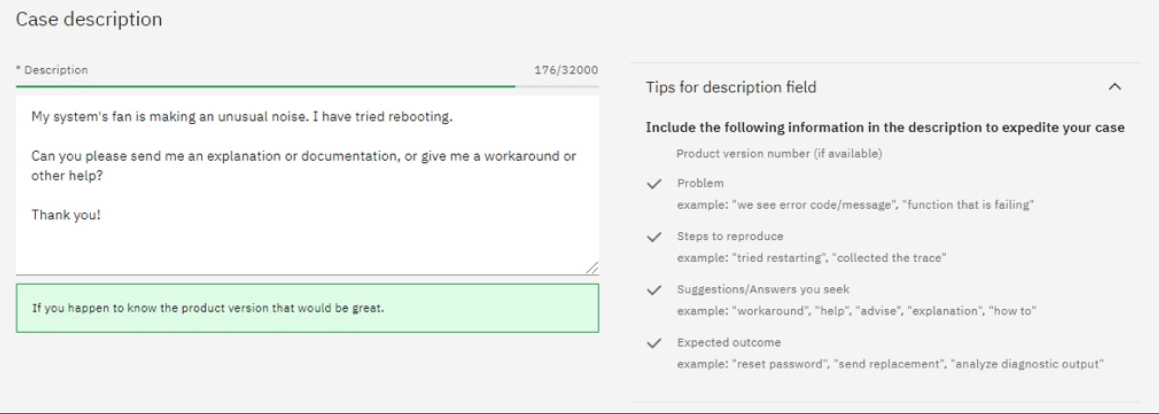
d. In the Case Description section, enter a Description of the issue as clearly and completely as you can. Watson analyzes the information entered and offers tips to improve the content. If a known solution is available, it displays alongside the description.
e. In the Attachments and Team Members section, use the Upload button to attach any relevant documents or screenshots, and enter or confirm the Case contact number. Client reference number can be ignored.
f. To add team members to the case, search for them in the Add team members field. You can add team members to the case whether or not they are associated with your accounts. For more information about adding team members, refer to the Adding Team Members To New and Existing Cases support topic.
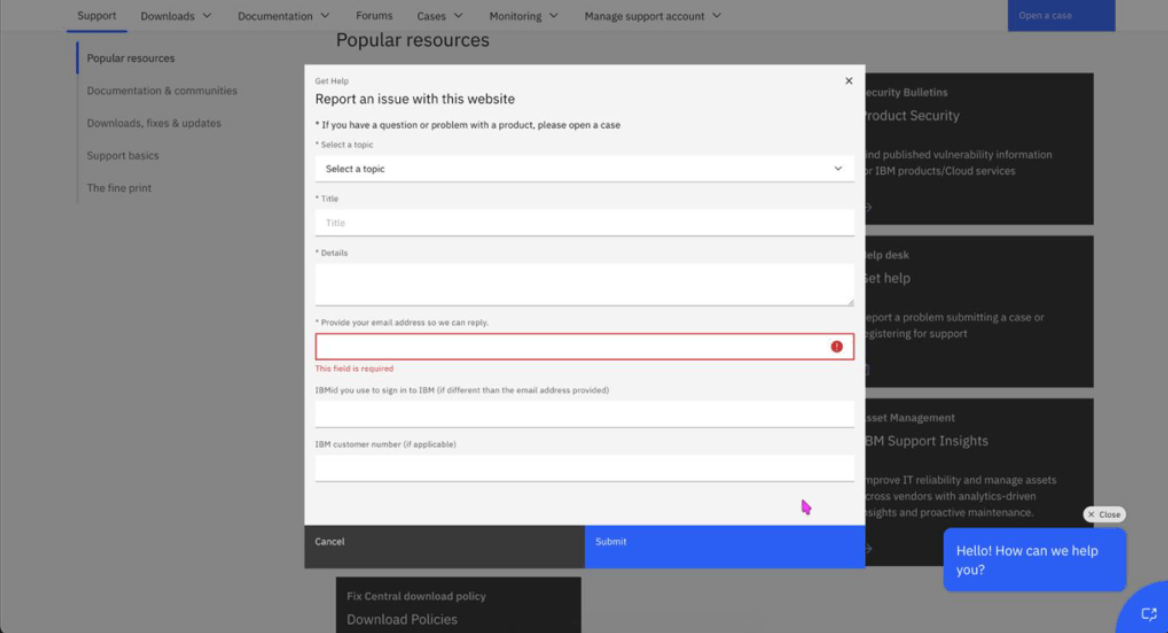
g. If desired, check the box to Save this case as a template for future use and then enter a Case template title for the new template. For more information, refer to the Working with Case Templates support topic.
- Review the information entered then click Submit case. The Case detail page displays including the Case number which you may need for further contact with IBM Support about this issue.
3. Managing existing cases
If you have information to add or changes to make after you open a case on the IBM Support site, you can update your cases through the Case detail page. Refer to the How To Update Cases support topic for instructions.
4. Get Help with Cases
It is unlikely, but there may be times where you experience issues with your cases (authorization errors, adding other users, etc.). These issues are more common when you first start using your IBMid to open cases on the IBM Support site. The IBM Z ISV Development Programs is not optimally equipped to resolve issues related to the IBM Support site and issues regarding the cases themselves.
There is a process to open a case with the IBM Support help desk that will allow you to communicate directly with the team responsible for resolving issues of this nature.
- Navigate to IBM Support.
- Scroll down until you see a tile labelled "Get help" and click on it.
- After clicking on the "Get help" tile, a popup will appear and prompt you to fill out information relevant to your case issue.
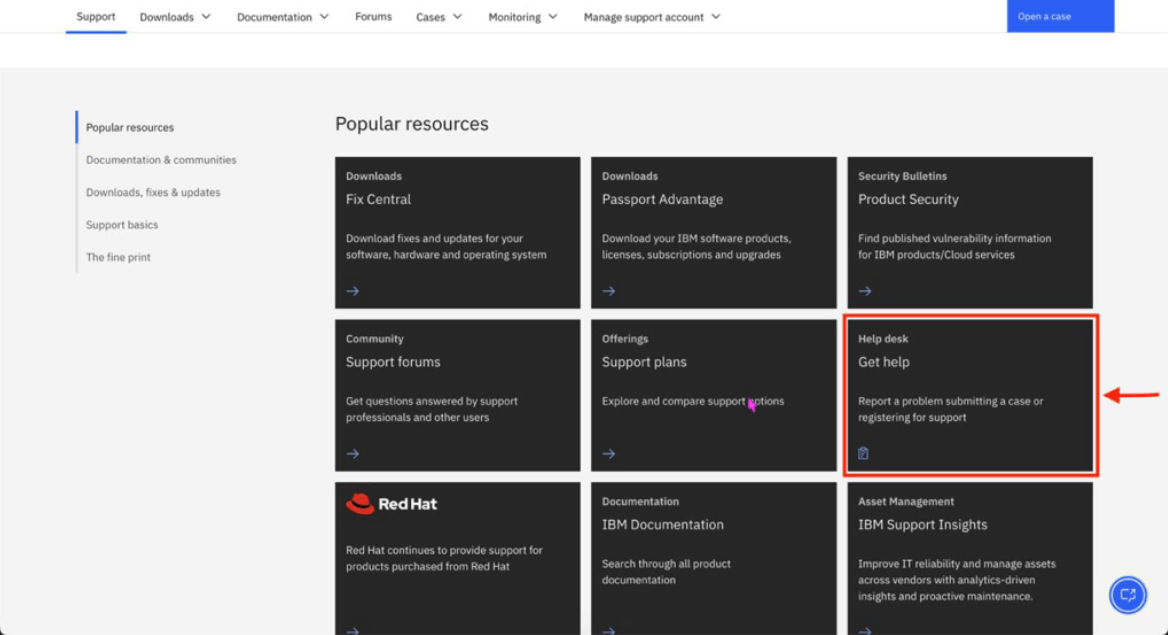
a. Select a topic: from this dropdown, select the topic that best matches your issue.
b. Title: create a brief, concise title for your issue.
c. Details: Describe your issue in as much detail as you deem necessary to communicate your issue to the help desk team. If this help desk case is related to another existing case, please provide the case number for it here as well.
d. Provide your email address so we can reply: enter the email address you would like for the help desk to communicate to.
e. IBMid you use to sign in to IBM (if different than the email address provided): optional. This field is only required when the previously specified email address is different than the email address you use to sign In to IBM (IBMid).
f. IBM customer number (if applicable): optional. If you have a customer number associated with your company's account, you can specify that here. The customer number is not required, and your company may not have one.
5. Technical support hours
Standard zTech support hours are 07:00 to 19:00 US Central Time Monday through Friday except on IBM holidays. Cases received after hours, on weekends, or on holidays will be processed the next business day.
If you would like to receive notifications regarding holiday support hours and planned system maintenance, please follow the instructions below to join the IBM Z Dallas ISV Secure User Group in the IBM Z and LinuxOne Community. The secure user group is a place for partners to collaborate, ask questions, trade tips and tricks, and receive relevant system notifications. Your membership will not be approved if you are not enrolled in an active program in the IBM Z and LinuxONE Partner Network.
- Navigate to the IBM Z and LinuxONE Community.
- Enter your IBMid and password to log in, if prompted. If you do not have an IBMid, you may create one by clicking Create an IBMid. Refer to the IBMid support topic for additional guidance.
- Read the contributor terms and conditions on the screen then click I Agree to proceed.
- Once you have joined the IBM Z and LinuxONE community, request to join to the IBM Z Dallas ISV Center Community.
- If approved, you will receive an email containing a personal link to join the group.
For assistance, please open a case through the IBM Support.
6. Case severity and escalation
Cases are triaged based on the severity selected by the user when the case is entered or updated. All cases will receive an initial response within one business day. The following are the expected response times by severity level:
| Case severity level | Description | Ongoing response times |
|---|---|---|
| 1 – Critical business impact | Production service is down | N/A* |
| 2 – Significant impact | A non-production system is down | Every 2 business days |
| 3 – Minor business impact | Experiencing a technical issue but system is still functional | Every 3 business days |
| 4 – Minimal impact | How-to questions, minor problems | Every 5 business days |
Thee IBM Z and LinuxONE Partner Network does not handle severity 1 cases. During a severity 1 case, IBM case handling best practices requires continual effort on a 24x7 basis until the issue has been resolved and the case is closed. The IBM Z and LinuxONE Partner Network does not support production services for ISVs or other critical business workloads. Additionally, we do not offer Service Level Agreements for any of our program offerings. This combination of factors makes the IBM Z and LinuxONE Partner Network ineligible to offer and support severity 1 case handling for ISVs. If you set the case severity to 1, the technical support agents will modify the severity to another value that better aligns with the description of your case.
Escalating the severity of the case triggers a notification to the IBM Z and LinuxONE Partner Network Director and the Escalation Team. Upon escalation, the case will be evaluated by the Escalation Team and appropriate actions will be taken to address the escalation. If you have escalated a case accidentally or no longer require the escalation, you can update the severity of the case from the view in the IBM Support portal.
7. Additional resources
For additional content and details on using IBM Support, please refer to the IBM Support Guide.