User's Guide and Reference for IBM Linux for System z Remote Access Programs
Preface
This document is intended to assist the user in accessing and using the Linux on System z Remote Development system. It covers all supported versions of Linux on System z.
Numbers to call for assistance:
- (972) 402-5652, hold for the agent and ask to open a Partner Plus Technical Support PMR for System z.
- (800) 426-9990, hold for the agent and ask to open a Partner Plus Technical Support PMR for System z. Note: This number is toll-free within the United States.
Table of contents
-
Overview – remote access environment
1.1. Hardware / software platform
1.2. Introduction to the virtual machine concept
1.3. System availability
1.4. Maintenance window
-
How to access the IBM Innovation Center System z server
3.1. User IDs in IBM Linux for System z
-
How to Terminate the Linux on System z System if IPLed using LOGONBY
10.1. Obtaining program account information
1 Overview – remote access environment
The remote access environment is provided by the IBM Innovation Center, Dallas organization in conjunction with various IBM development laboratories. Linux on System z is an operating system from IBM which runs on System z® server hardware.
1.1 Hardware / software platform
The remote access program is implemented on an IBM System z server which is accessible to Solution Developers participating in the remote access program via the INTERNET. The System z server runs the IBM z/VM® (Virtual Machine) operating system which supports multiple guest systems, each capable of supporting multiple users in a unique environment. Each remote access participant is provided with a dedicated guest system, which appears to the user as a System z server running a native Linux on System z operating system.
1.2 Introduction to the virtual machine concept
Virtual Machine (VM) is a software facility that allows one physical processor complex to be configured with multiple "virtual" processors or machines. Each virtual machine, known as a guest, runs independently of every other virtual machine, and can run any System z operating system (z/OS, z/VSE, z/VM, Linux, CMS, etc.) and software. Please refer to the IBM Redbook Introduction to the New Mainframe: z/VM Basics SG247316 http://www.redbooks.ibm.com/redbooks/pdfs/sg247316.pdf
1.3 System availability
The remote access program host systems are generally available 24 hours per day, 7 days per week except for scheduled maintenance windows. Technical and administrative support is available from 07:00 to 19:00 US Central time Monday through Friday only.
1.4 Maintenance window
The IBM Innovation Center, Dallas has implemented the following policy regarding maintenance windows:
Every Sunday between the hours of 09:30 and 15:30 US Central time the IBM Innovation Center, Dallas may choose to make any of the processors unavailable. This time will be used to perform system IPL's and to implement new or updated releases of software. All Solution Developers requiring an orderly guest Linux on System z system shutdown should perform the shutdown prior to that time and should not plan to resume operation until after 15:30 US Central time on Sunday.
A maintenance window will not be required every Sunday, therefore Solution Developers may choose to work during this time but only at their own risk. Notices will be posted whenever possible (via host system broadcast messages) but all activity during this window is subject to immediate interruption.
Solution Developers with special requirements for this time period should contact the IBM Innovation Center, Dallas as early as possible.
1.5 Remote access system backup
The z/VM disks that contain the remote access system are backed up to tape every week and are available for 3 months. The intent of these backups is to enable us to recover from a DASD failure. The backup and restore process operates only at the z/VM disk level, therefore the restoration of individual files from these backups is difficult and time-consuming and not generally available.
To obtain details of the backups for the remote access system, or to change the frequency of the backups, please contact the IBM Innovation Center, Dallas.
3 How to access the IBM Innovation Center System z server
Before utilizing the guest Linux on System z system, Solution Developers must first follow the steps below to access the IBM System z server (e.g., SVSCDR2) and initialize (IPL) the guest Linux on System z system. Access to the IBM System z server requires access to the Internet. The method, line speed, and choice of Internet Service Provider are determined by the Solution Developer.
3.1 User IDs in IBM Linux for System z
There are several different user IDs described in this document:
- Guest system ID - z/VM ID which executes Linux on System z. This ID is the guest Linux on System z system.
- z/VM Personal user ID - z/VM user ID used as an individual identifier for security verification when accessing the Linux on System z virtual machine (via the DIAL command).
- z/VM Control user ID - The term z/VM Control user ID is used to reference the specific z/VM Personal user ID used to initialize the guest Linux on System z system and currently holds the ability to perform functions for the guest Linux on System z system.
In this guide, we refer to the guest Linux on System z system ID as ETPGLyy and the z/VM
Personal user ID as ETPDxxx
All Solution Developers have been provided a guest Linux on System z system ID which is the guest Linux on System z system.
If not previously supplied with passwords for the z/VM Personal user IDs, contact the IBM Innovation Center, Dallas and request to have the z/VM Personal user IDs RESUMED and an initial password set.
3.2 TN3270 Emulators in IBM Linux for System z
- Consult the TN3270 emulator documentation to determine the appropriate key sequences required for the ENTER, PA2, F12 and CLEAR keys.
- The TN3270 emulator must be SSL capable.
Note: IBM Corporation has taken steps to enhance the security of the internet connections to the IBM Innovation Center, Dallas remote access systems, by blocking various ports from "INBOUND" traffic. Information about the blocked ports can be found on the IBM Innovation Center, Dallas website at URL: http://dtsc.dfw.ibm.com/MVSDS/'HTTPD2.DSN01.PUBLIC.HTML(BLKPORTS)'
3.3 Accessing the System z Server
To access the System z server, an Internet connection must first be established. Once that is established, perform the following steps:
Step 1. Direct an SSL enabled TN3270 connection to the IBM Innovation Center, Dallas Secure Portal at IP address 198.81.193.6, port 23.
-
Go to the IBM Innovation Center, Dallas public website to download the Certificate for SSL and view instructions for setting up an SSL enabled TN3270 connection (The instructions that follow are for the IBM Personal Communications 3270 Emulator software. You will need to consult your 3270 emulator documentation for the steps that are required to download and use the security certificate for the IBM Innovation Center, Dallas Secure Portal at IP address 198.81.193.6):
Select the Certificate for SSL TN3270 link at the bottom of the page.
Step 2. Once the connection is set up, the Remote Access Portal screen (below) will be shown. Choose the system identified in the delivery email by entering in the system name and pressing ENTER.
 Figure 1 SSL connection screen shot
Step 3. The next screen displayed will be the IBM Innovation Center, Dallas system LOGO screen, indicating that the IBM Innovation Center, Dallas System z server has been reached.
 Figure 2 LOGO screen example
Step 4. On the command line of the LOGO screen, logon by typing in a z/VM Personal user ID and password and pressing ENTER.
-
The password will be expired on first use of the z/VM Personal user ID or anytime after the IBM Innovation Center, Dallas has reset the password. The system will prompt you to change the password (as shown below).
LOGON ETPDxxx
RPIMGR042I PASSWORD EXPIRED
To change your password - enter: nnn/nnn where nnn = new
password or, enter LOGOFF to cancel
Enter a new password in the format of new_password/new_password and press ENTER. The text you type will not be visible to help assure the privacy of the z/VM Personal user ID password.
PASSWORD RULES. The PASSWORD MUST:
- Be eight characters in length
- Only contain alphabetic, numeric and national characters i.e., $ # and @
- Contain at least one alphabetic and one non-alphabetic character
- Have the first and last characters be non-numeric
- Contain no more than three identical consecutive characters in any position from the previous password
- Contain no more than two identical consecutive characters
- Not contain the userid as part of the password
- Not be reused until after at least eight iterations
Step 5. System “log messages” with information of general interest, are broadcast to all users on
the system. Be sure to review the broadcast messages for important notices regarding
scheduled outages. When the z/VM status indicator in the lower right-hand corner of the
screen shows VM Read, press the ENTER key to continue. If the z/VM status indicator in the
lower right-hand corner of the screen shows HOLDING or MORE..., press the CLEAR or
PA2 key to continue.
Note: The ENTER, CLEAR, and PA2 keys are part of the IBM 3270 terminal architecture. Refer to the TN3270 emulator's documentation for information on these keys.
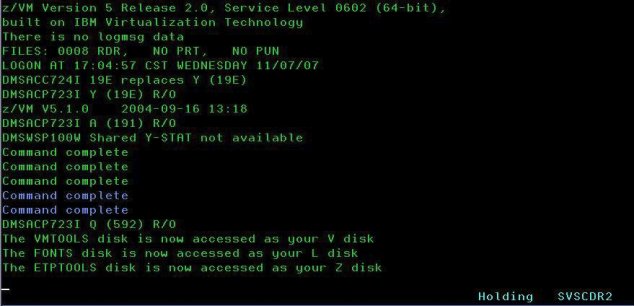 Figure 3 System messages, CLEAR to continue
Step 6. Successful logon has occurred when the screen displays the “CMS ready prompt” and
the z/VM status indicator in lower right-hand corner shows Running SVSCxxx. You are
now ready to initialize the Linux on System z guest as described in 4 IPL the Linux on System z guest system. Since a z/VM Personal user ID has been chosen to initialize the z/
VM guest, this z/VM Personal user ID becomes the VM Control userid.
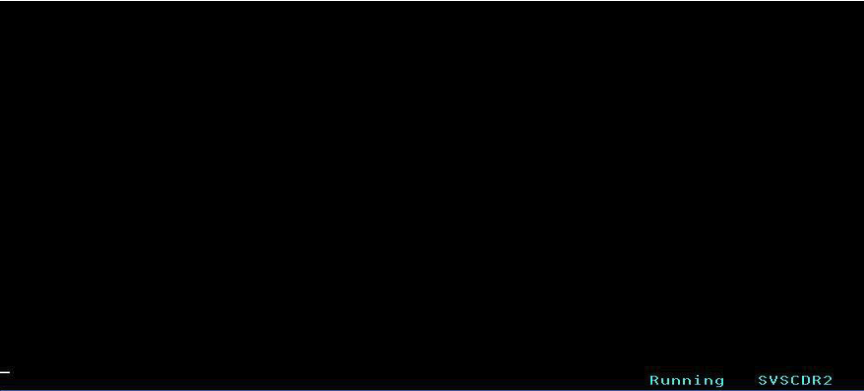 Figure 4 CMS Ready prompt
4 IPL the Linux on System z guest system
-
Access the System z server over the Internet through the IBM Innovation Center, Dallas Secure Portal using an SSL enabled TN3270 emulator. See 3 How to access the IBM Innovation Center System z server for detailed instructions.
-
Logon a z/VM Personal user ID which will be used to control the guest Linux on System z system. The user ID is now referred to as the z/VM control user ID.
-
Initialize the guest Linux on System z system with the command
SVXLOGguest system ID:SVXLOG ETPGLyy -
After successfully activating and IPLing your guest system ID, type in the following command on your VM command line:
#CP DISCYou will see a message similar to:
DISCONNECT AT 11:22:57 CDT WEDNESDAY 10/08/97 -
Press Enter to return to the IBM Innovation Center, Dallas logo screen.
-
You can now log onto root for your Linux on System z system by directing your SSH Client to the IP address assigned to your Linux system. Refer to the system delivery emails to obtain the assigned IP address and the password for root. If the assigned IP address requires the use of Client VPN, please refer to the system delivery email for instructions for downloading the Cisco VPN Client software and using it to log into the VPN
5 How to Reconnect the Control User ID
To reconnect the z/VM control user ID again to log off the Linux on System z system, you must follow these steps:
-
Access the System z server over the Internet through the IBM Innovation Center, Dallas Secure Portal using an SSL enabled TN3270 emulator. See How to access the IBM Innovation Center System z server for detailed instructions.
-
From the IBM Innovation Center, Dallas logo screen, enter the z/VM control user ID and the associated password and press Enter.
-
Once logged back on, notice that displayed in the lower right hand corner of your screen is
CP READ. Type B and press Enter. You may have to clear your screen afterwards by pressing the Clear or PA2 key to complete the reconnect process.
6 How to Terminate the Linux on System z System
-
Shutdown your Linux on System z system from root by directing your SSH Client to the IP address assigned to your guest Linux system.
-
Reconnect the z/VM control user ID using the instructions found in How to Reconnect the Control User ID.
-
From the z/VM control user ID, type
SEND Guest system ID \CP LOGOFFand press Enter. You will receive a message from the Guest system ID similar to:ETPGLyy: LOGOFF AT 15:12:41 CST TUESDAY 11/06/07Now you are ready to logoff the z/VM control user ID.
-
Type
LOGOFFand press Enter
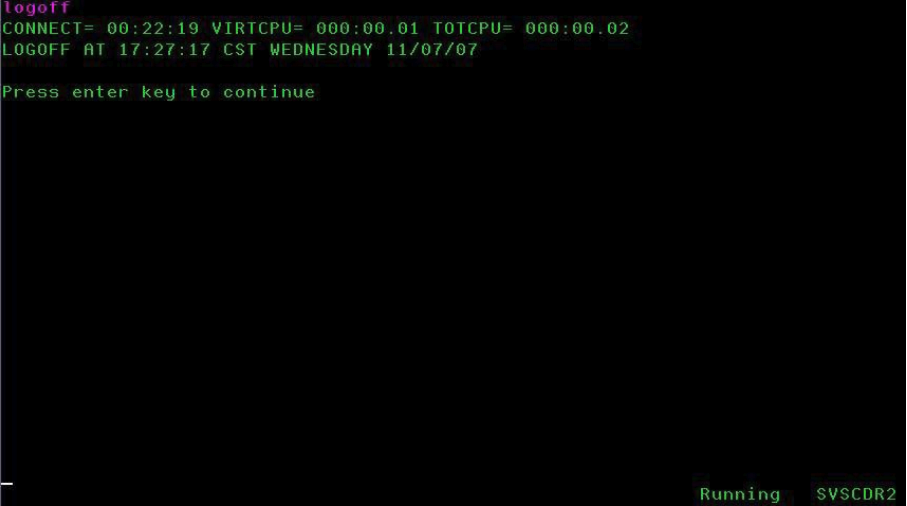 Figure 5 Logging off z/VM control user ID.
7 How To IPL Linux on System z using LOGONBY
-
Access the System z server over the Internet through the IBM Innovation Center, Dallas Secure Portal using an SSL enabled TN3270 emulator. See How to access the IBM Innovation Center System z server for detailed instructions.
-
The Linux on System z Guest system user ID does not have a password and thus can not be logged on to directly. However, you can
LOGONto the Guest system ID BY a z/VM Personal user ID, if you have a z/VM Personal user ID assigned. -
Tab to the COMMAND line and type
L ETPGLyy BY ETPDxxxon the logo screen and press Enter, replacingETPGLyywith your Guest system ID and replacingETPDxxxwith your z/VM Personal user ID.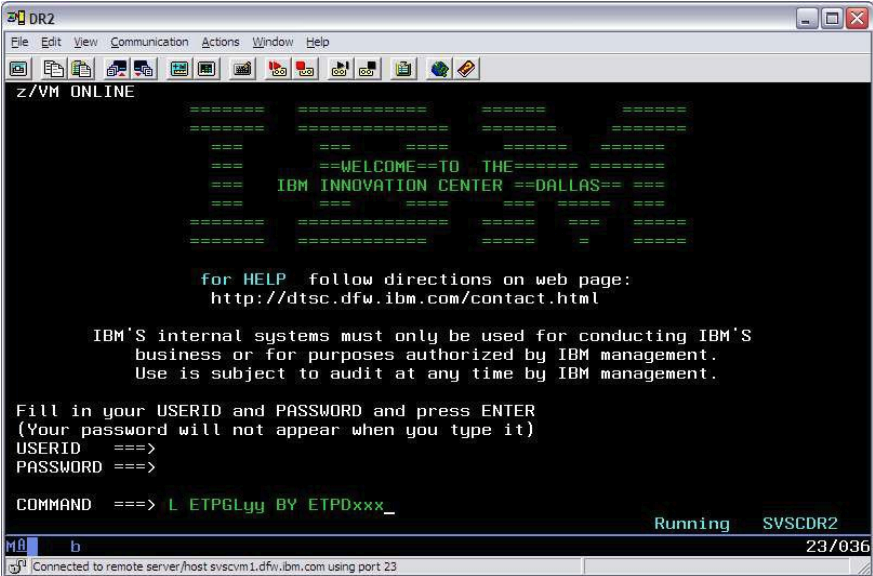 Figure 6 Example of LOGONBY
 -
The password will be expired on first use of the z/VM Personal user ID or anytime after the IBM Innovation Center, Dallas has reset the password. The system will prompt you to change the password (as shown below).
LOGON ETPDxxx
RPIMGR042I PASSWORD EXPIRED
To change your password - enter: nnn/nnn
password or, enter LOGOFF to cancel
where nnn = new
Enter a new password in the format of new_password/new_password and press ENTER. The text you type will not be visible to help assure the privacy of the z/VM Personal user ID password.
-
You may see system "log messages" at this point with information of general interest which is broadcast to all users on the system. If the VM status indicator (in the lower right-hand corner of the screen) shows Holding or More..., press the Clear or PA2 key to continue. When the VM status indicator shows Running, CMS is operating.
Note: The CLEAR and PA2 keys are part of the IBM 3270 terminal architecture.
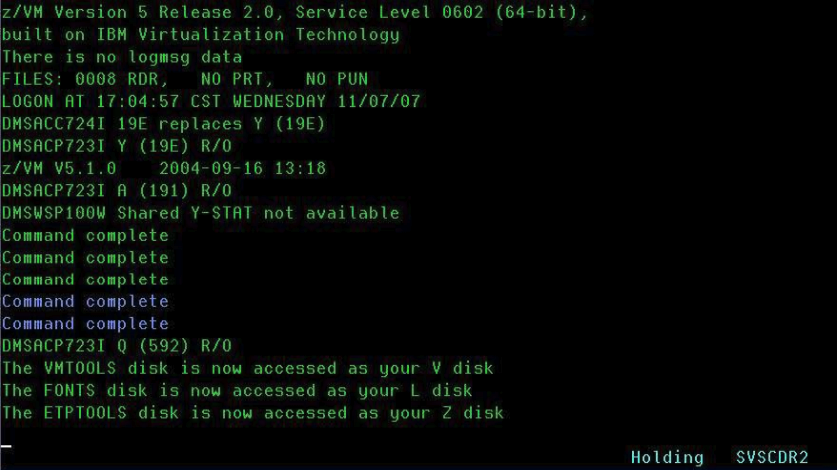 Figure 7 Example of Logon Messages
 -
The Linux on System z system will begin the IPL process. If the z/VM status indicator shows
HoldingorMore, press the CLEAR or PA2 key to continue. -
You can now log onto root for your Linux on System z system by directing your SSH Client to the IP address assigned to your Linux system. Refer to the system delivery emails to obtain the assigned IP address and the password for root. If the assigned IP address requires the use of Client VPN, please refer to the system delivery email for instructions for downloading the Cisco VPN Client software and using it to log into the VPN .
-
Issue the
#CP DISCcommand from the VM command line to disconnect when finished viewing the Linux console. The Linux system will remain fully operational.
8 How to Access the Linux Console After an IPL
Use the LOGONBY command to access the guest system user ID’s console as you did when IPLing the
system. See “How To IPL Linux on System z using LOGONBY ” on page 11. If you receive the
message HCPLGA054E Already logged on, follow these steps:
-
Type
LOGOFFand press ENTER to return to the logo screen. -
From the logo screen, tab to the COMMAND line, type
L ETPGLyy BY ETPDxxx HEREand press ENTER. See Figure 6 Example of LOGONBY.
9 How to Terminate the Linux on System z System if IPLed using LOGONBY
-
Shutdown the Linux on System z system from root by directing your SSH Client to the IP address assigned to your guest Linux system.
-
Use the LOGONBY command to access the guest system user ID’s console as you did when IPLing the system. See 7 How To IPL Linux on System z using LOGONBY on page 11.
-
On the command line, type
#CP LOGOFFand press Enter. You will receive a message from the guest system user ID similar to:ETPGLyy: LOGOFF AT 15:12:41 CST TUESDAY 11/06/07
10 Accounting information
Many of the IBM Innovation Center, Dallas Remote Access Program fees include a specified
amount of CPU work units in the base fee and any extra work units used for a month are charged
at a specified per work unit rate. The number of work units included in the base fee and the
additional per work unit rate are documented in the Program Charges section of the Exhibit
included in the program enrollment package. The session report (SESSREPT) command is
provided for you to monitor the work unit usage of your guest system. Accounting records are
stored for each guest system that has had usage during the twelve hour period ending at 07:00
and at 19:00 US Central time each day.
10.1 Obtaining program account information
Work unit accounting information may be obtained for the guest Linux on System z system, for a specified date range by issuing a CP command from a z/VM Personal user ID.
The command is:
MSG SVUTIL SESSREPT ETPGLyy FDATE LDATE
where FDATE is the first date in the range and LDATE is the last date in the range.
An explanation of the syntax is provided in the SESSREPT help text which is retrieved with
the command:
MSG SVUTIL HELP SESSREPT
SVUTIL: SVUTIL SESSREPT COMMAND SYNTAX:
SVUTIL:
SVUTIL: "MSG SVUTIL SESSREPT UUUUUUUU FDATE LDATE"
SVUTIL:
SVUTIL:
WHERE UUUUUUUU = USERID FOR SESSION REPORT
SVUTIL: FDATE = FIRST DATE TO BE REPORTED
(MM/DD/YY)
SVUTIL: LDATE = LAST DATE TO BE REPORTED
(MM/DD/YY)
SVUTIL:
SVUTIL: ALL PARAMETERS ARE REQUIRED. DATES MUST BE BETWEEN 1989
AND THE CURRENT DATE. ONE OR TWO DIGITS OK FOR MONTH AND DAY.
After a short time, the SVUTIL service machine will send a detailed usage report to the z/VM
Reader of the z/VM Personal user ID that sent the command.
When the report is returned, a message will be displayed on the z/VM Personal user ID CMS screen with an identifying file number. To view the contents of the file, enter the command:
PEEK file_number (FOR *
Alternatively, access the file using the z/VM ReadList command:
RL
From the list of reader files, cursor to the line of the file to view and press F11 (Peek).
While 'peeking' the file, it may be easier to view after entering the command V 1 78 on the
command line. Use F7 and F8 to scroll the file forward and backward. Use F3 to quit
looking at the file.
11 Appendix A: Terms and definitions
| Term | Definition |
|---|---|
| Guest system | An operating system running in a virtual machine managed by the z/VM Control program. |
| Control ID | The term z/VM control user ID is used to reference the specific z/VM Personal user ID used to initialize the guest Linux on System z system and currently holds the ability to perform functions for the system. |
| CP | Control Program. The component of z/VM that manages the resources of a single physical processor complex such that multiple computing systems appear to exist. From the CONSOLE device, a user may toggle back and forth between CP and a guest system by pressing the PA1 (Program Attention 1) key.1 |
| Virtual Machine | A functional equivalent of either a System/370 computing system, a System/370-XA (Extended Architecture) computing system, a System/370-ESA (Enterprise Systems Architecture), or a System/390 computing system. Each virtual machine is controlled by an operating system. |
| z/VM | Virtual Machine. A software facility which enables multiple users to share the resources of a single physical processor complex such that each user appears to have the equivalent of a dedicated processor. |
Note: The PA1, PA2, and CLEAR keys are part of the IBM 3270 terminal architecture, and may be emulated by a different key or combination of keys depending on the actual terminal or personal computer emulation package being used.
The following are CP and CMS Status Indicators - these indicators may at times appear in the lower right hand corner of the display.
| Term | Definition |
|---|---|
| CP READ | Means that CP issued a read request to the display and is waiting for something to be entered before it continues processing. |
| VM READ | Similar to CP READ but issued from CMS (Conversational Monitor System, a component of z/VM). |
| RUNNING | Means that CP or CMS either is ready for the next CP or CMS command or is processing a previously entered command. |
| MORE... | Means that the output display area is full and that CMS or CP has more lines to display. The data currently on the screen will be displayed for one minute. To get to the next screen, press CLEAR or PA2. To keep the current information on the screen, press the ENTER key. The HOLDING indicator then appears in the status area. If you do not respond to the MORE... indicator within 1 minute, the next screen will automatically be displayed (your display device will beep 10 seconds prior to display of the next screen). |
| HOLDING | Means that the ENTER key was pressed in response to a MORE... status indicator, or that the display screen contains priority messages from CP. To get to the next screen, press CLEAR or PA2. |
| NOT ACCEPTED | Means that previous input has not yet been processed. Recommended response is to wait for the NOT ACCEPTED to clear, backspace to the left margin, erase the command, and reenter it. |
12 Notices
This information was developed for products and services offered in the U.S.A.
IBM may not offer the products, services, or features discussed in this document in other countries. Consult your local IBM representative for information on the products and services currently available in your area. Any reference to an IBM product, program, or service is not intended to state or imply that only that IBM product, program, or service may be used. Any functionally equivalent product, program, or service that does not infringe any IBM intellectual property right may be used instead. However, it is the user's responsibility to evaluate and verify the operation of any non-IBM product, program, or service.
IBM may have patents or pending patent applications covering subject matter described in this document. The furnishing of this document does not give you any license to these patents. You can send license inquiries, in writing, to:
IBM Director of Licensing, IBM Corporation, North Castle Drive, Armonk, NY 10504-1785 U.S.A.
The following paragraph does not apply to the United Kingdom or any other country where such provisions are inconsistent with local law: INTERNATIONAL BUSINESS MACHINES CORPORATION PROVIDES THIS PUBLICATION "AS IS" WITHOUT WARRANTY OF ANY KIND, EITHER EXPRESS OR IMPLIED, INCLUDING, BUT NOT LIMITED TO, THE IMPLIED WARRANTIES OF NON-INFRINGEMENT, MERCHANTABILITY OR FITNESS FOR A PARTICULAR PURPOSE. Some states do not allow disclaimer of express or implied warranties in certain transactions, therefore, this statement may not apply to you.
This information could include technical inaccuracies or typographical errors. Changes are periodically made to the information herein; these changes will be incorporated in new editions of the publication. IBM may make improvements and/or changes in the product(s) and/or the program(s) described in this publication at any time without notice.
13 Trademarks
The following terms are trademarks or registered trademarks of International Business Machines Corporation in the United States, other countries, or both. If these and other IBM trademarked terms are marked on their first occurrence in this information with a trademark symbol (® or ™), these symbols indicate U.S. registered or common law trademarks owned by IBM at the time this information was published. Such trademarks may also be registered or common law trademarks in other countries. A current list of IBM trademarks is available on the Web at “Copyright and trademark information” at www.ibm.com/legal/copytrade.shtml
- IBM®
- REXX
- System z®
- VTAM®
- z/VM®
Microsoft, Windows, Windows NT, and the Windows logo are trademarks of Microsoft Corporation in the United States, other countries, or both.
UNIX is a registered trademark of The Open Group in the United States and other countries.
Other company, product, or service names may be trademarks or service marks of others.